Business Central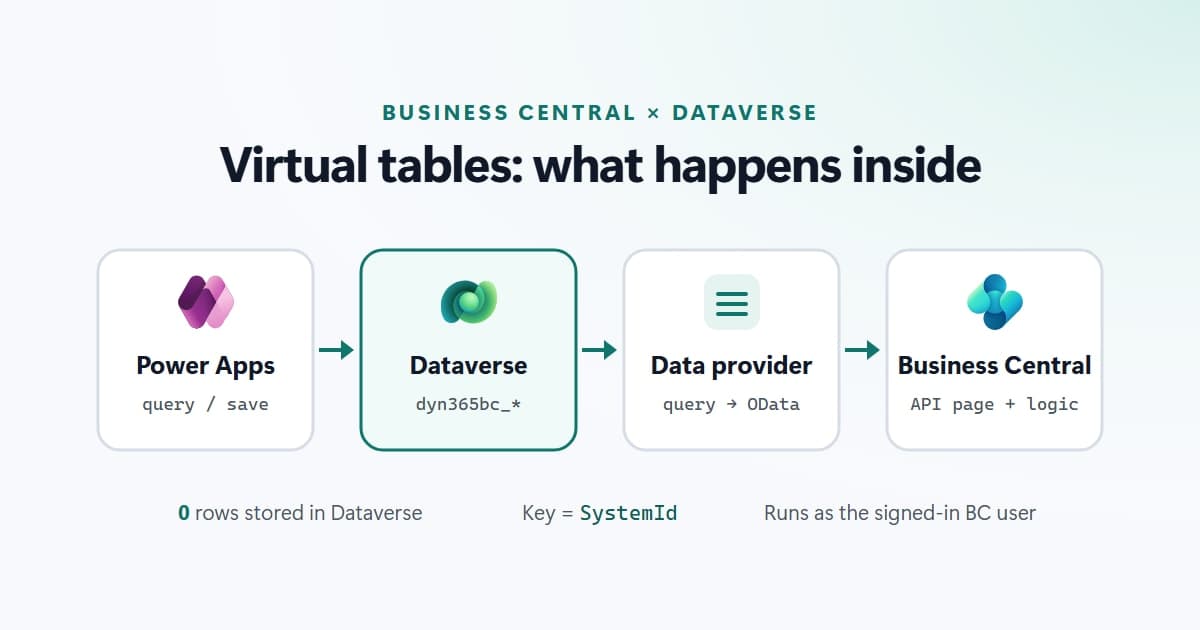
Open a Business Central virtual table in Power Apps and it looks like any other Dataverse table. It has columns, views, forms and lookups. Yet not a single row of it is stored in Dataverse. Every time a gallery loads or a form saves, the request travels to Business Central and back.
That one fact explains almost everything about how these tables behave, including their limits. This article walks through the internals using Microsoft’s own documentation: what gets installed, how a table is generated, and what happens on every read and write.
First, which "virtual table"?
Business Central has its own objects called virtual tables, such as system tables that expose runtime data. They are unrelated. This article is about Dataverse virtual tables that surface Business Central data, the ones you use from Power Apps, Power Automate and Power Pages.
Virtual tables in Dataverse, in general
In Dataverse, a virtual table is a table definition with no physical storage behind it. When a record is needed, its state is fetched at runtime from an external system. Three pieces make that work:
- The virtual table holds the definition: columns, relationships, forms and views.
- A data source row holds the connection details for the external system.
- A data provider is a set of plug-ins registered on the Create, Retrieve, RetrieveMultiple, Update and Delete messages. Each plug-in translates the Dataverse request into a call to the external system and converts the answer back into records.
For RetrieveMultiple, the plug-in receives the query as a QueryExpression, turns it into something the external system understands, and returns an EntityCollection. For Business Central, Microsoft ships that provider for you.
What gets installed
You install the Business Central Virtual Table app from Microsoft Marketplace into the Power Platform environment. It adds five solutions to Dataverse:
- Dynamics365Company adds the
cdm_companytable. Every Business Central virtual table references it, because every call to Business Central needs a company ID. - MicrosoftBusinessCentralVESupport contains the core support for the feature.
- MicrosoftBusinessCentralERPCatalog holds the catalogue of tables available in your Business Central environment, including tables based on custom APIs.
- MicrosoftBusinessCentralVEAnchor is a container with the information Marketplace needs.
- MicrosoftBusinessCentralERPVE is where the generated virtual tables live. Tables are added to it at runtime as you make them visible.
The connection: Entra, environment and company
Setting up the connection takes three decisions, and each one matters later:
- In Business Central, open Microsoft Entra applications and enable Dynamics 365 Business Central for Virtual tables. This is what allows Dataverse to call Business Central.
- In Dataverse, open the Business Central Virtual Data Source Configuration table and enter the Business Central environment name, for example
production. - Set the Default Company. A virtual table talks to one company at a time. Individual users can override it.
Both environments must be in the same Microsoft Entra tenant. And every Power Platform user who reads Business Central data through a virtual table must also exist as a user in Business Central, because the call runs as that user.
How a table is born: API page to Dataverse table
Virtual tables are not built from Business Central tables directly. They are built from API pages: the standard API v2.0 and any custom APIs you have installed. There are so many of these that none are visible by default. You tick Visible on a row in Available Business Central Tables (or in the Business Central Configuration app), and Dataverse generates the table.
During generation, Dataverse reads two sources from Business Central: the OData $metadata document for the structure, and an API called entityDefinitions for labels and translations. From those, it builds the table using a fixed set of rules.
Names and keys
- Prefix. Every table gets the
dyn365bc_prefix, and it cannot be changed. - Primary key. The record’s SystemId (a GUID) becomes the Dataverse primary key.
- Primary name column. Dataverse uses the
displayNamefield if the API has one, otherwise the first text field. - Company. Every table gets a Company lookup to
cdm_companyfor the user interface and a Company Code column to use in code.
Data types
- Int becomes Integer. Real and Long become Decimal, with Long at precision 0.
- Date and UtcDateTime become time-zone-independent DateTime columns. Business Central’s empty date, 1 January 1900, comes through as empty or null.
- Enums become global option sets. Values are matched on their External Name, so never rely on the integer values in Dataverse, especially for extensible enums.
- Calculated fields such as FlowFields are available too.
Relationships
Relations between Business Central tables become many-to-one relationships named dyn365bc_<source>_<target>, with a lookup column added to the source table. A relationship is only created when all of these are true:
- The target table has already been made visible as a virtual table.
- The foreign key is a SystemId GUID.
- The relationship name fits in 120 characters.
What happens when Power Apps reads a row
Take a gallery that lists customers from Business Central. Behind it, each load runs this sequence:
- The app sends a normal Dataverse query for
dyn365bc_customer. - Dataverse sees that the table is virtual and routes the RetrieveMultiple message to the Business Central data provider instead of the database.
- The provider translates the query into an OData request against the Business Central API for the configured environment and company.
- Business Central runs the API page as the signed-in user, so that user’s permissions apply.
- The JSON response is mapped back into Dataverse records and returned to the app.
Because every query becomes an OData query, filters are limited to what can be expressed that way. Microsoft lists these as unsupported in advanced find: Does Not Equal, Does Not Contain, Does Not Begin With, Does Not End With, Contains Data and Does Not Contain Data, combined And/Or groups across columns, and filters on related tables or calculated fields.
What happens when Power Apps writes a row
Writes are where virtual tables are different from data synchronisation. Nothing is copied. A create or update is sent to Business Central, and Business Central’s own business logic runs:
- Dataverse sends the Create or Update message.
- Business Central runs the existing logic on the table and its backing tables. Triggers, validation and default values all apply, including
InitValue. - Dataverse sends one more Retrieve to read back the final record, so any values Business Central filled in appear in the app.
If Business Central throws an error, the last message in its error log comes back to Dataverse as an InvalidPluginExecutionException, in the language set on that user’s Business Central profile. Messages that do not raise an error are not shown.
OData actions on Business Central API pages are also exposed, as custom actions in Dataverse. They take the record as their only parameter and return nothing.
Exposing your own table with a custom API
Any custom API page you install appears in the catalogue next to the standard ones. Microsoft calls out two rules. Use a single GUID field in ODataKeyFields, which in practice means SystemId. And use only lowercase English letters and numbers for APIPublisher, APIGroup and APIVersion, to avoid encoding problems between regions.
page 50100 "Vendor Rating API"
{
    PageType = API;
    APIPublisher = 'builtproperly';
    APIGroup = 'procurement';
    APIVersion = 'v1.0';
    EntityName = 'vendorRating';
    EntitySetName = 'vendorRatings';
    SourceTable = Vendor;
    ODataKeyFields = SystemId;
    DelayedInsert = true;

    layout
    {
        area(Content)
        {
            repeater(Records)
            {
                field(id; Rec.SystemId) { Editable = false; }
                field(number; Rec."No.") { }
                // displayName becomes the primary name column in Dataverse.
                field(displayName; Rec.Name) { }
                field(blocked; Rec.Blocked) { }
            }
        }
    }
}
Publish it, make it visible in the catalogue, and it is generated like any standard API. If you change the page later, set Refresh on the catalogue row so the Dataverse definition follows.
Limits to design around
Some limits come from Dataverse virtual tables in general, others from the Business Central provider:
- No charts or dashboards on these tables.
- No attachments, images or BLOB-based multiline text.
- No auditing, business process flows, queues, duplicate detection, Dataverse search or mobile offline.
- No Dataverse row-level security. Virtual tables are organisation-owned. Access is enforced by Business Central permissions for the calling user.
- No change tracking, so Azure Synapse Link and similar features cannot sync them.
- One company per call, from the default or the user’s override.
- Native-to-virtual relationships need a shared key, for example an account number synced from the customer number, set up as a synthetic relationship.
Solutions and ALM
The generated tables sit in the managed MicrosoftBusinessCentralERPVE solution. In your own solution, use Add existing to reference the virtual table and customise its forms and views there. When that solution is imported into another environment and the virtual table does not exist yet, the import makes it visible automatically.
Virtual tables or synchronisation?
Use virtual tables when the app needs live Business Central data and Business Central logic on every save, and the data must not be copied. Use Dataverse synchronisation when you need Dataverse features the virtual tables cannot offer, such as offline, auditing, charts or row-level security. Many real projects use both: sync the master data that links the two systems, and read transactions live.
Sources on Microsoft Learn: Integrating Business Central with Dataverse, Power Platform integration via virtual tables, Working with virtual tables, Admin reference, FAQ, Get started with virtual tables and Custom virtual table data providers.